TL;DR
Most Shopify product personalization apps give shoppers a live preview, then hand you an image or a set of options, not a print-ready file. So someone still recreates the artwork for production. This guide shows how to add personalization to Shopify that outputs a real production-ready file per order, and what to check before you choose an app.
The gap most stores miss: a Shopify personalizer that shows a lovely live preview has done the easy half. If it does not also output a production-ready file for each order, someone in the back office still rebuilds the artwork by hand. That step is where personalization quietly stops scaling.
Adding product personalization to Shopify is easy to start and hard to finish. Installing an app that lets a shopper type their name or drop a logo onto a mockup takes an afternoon. The hard part shows up after the order: turning what the shopper configured into a file production can actually print. FastEditor is built for that second half, the artwork automation that turns a personalized order into a clean, production-ready file, not just a nice picture. This guide explains the difference, how to wire it into Shopify, and what to check before you commit to an app.
What most Shopify personalization apps actually do
The Shopify app store is full of product personalizer and customizer apps, and most do the same core thing well: they render a live preview. A shopper picks a colour, adds text or uploads an image, and sees it on a product mockup in real time. That is genuinely useful. A live preview raises confidence and conversion, which is the whole reason to offer personalization in the first place. The trouble is what happens next. When the order lands, many apps pass you the shopper's inputs, the text they typed, the options they chose, and a preview image or the raw uploaded file. What they do not pass you is a file that is ready to print.
A preview is not a print file
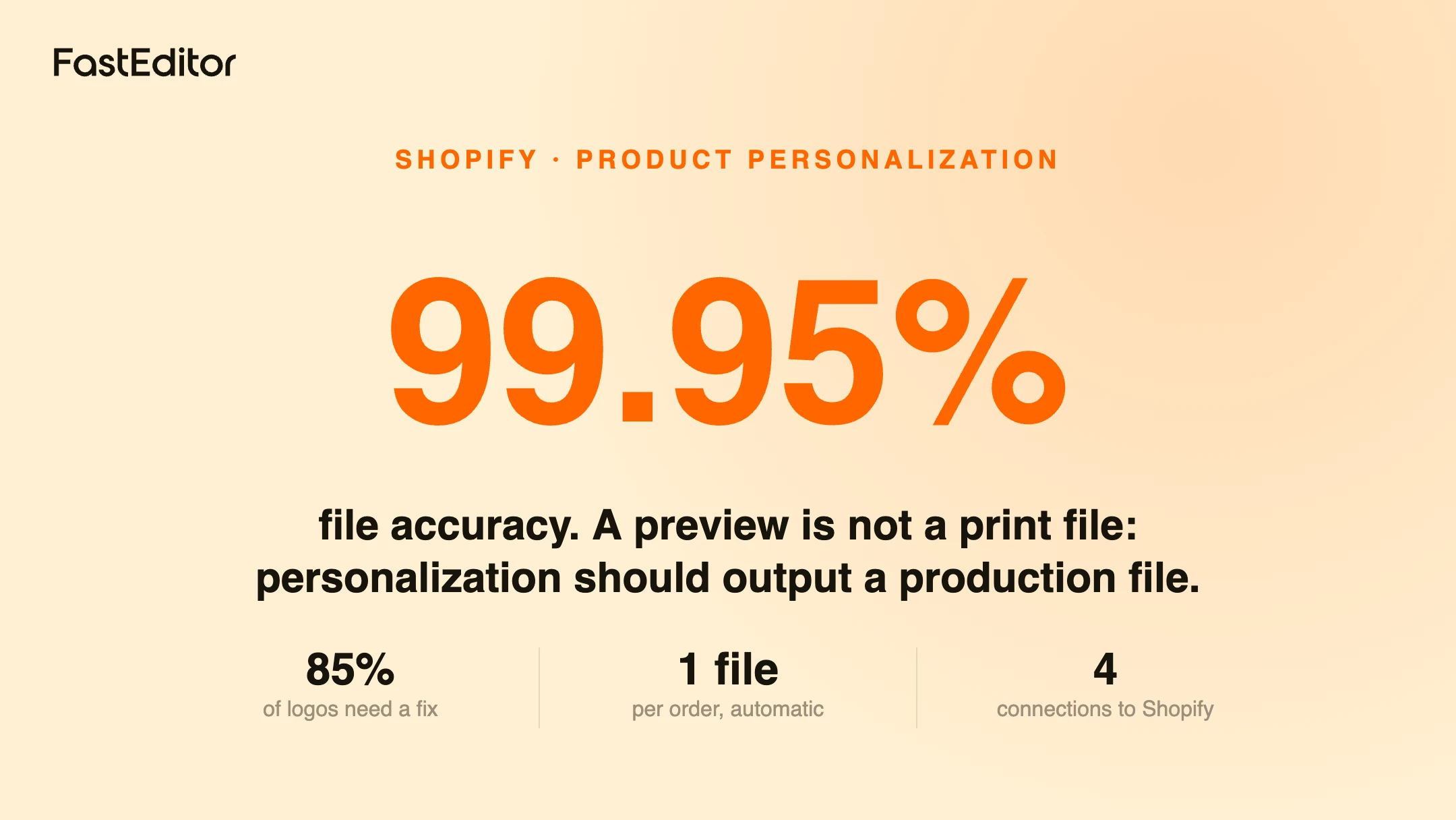
A preview is a low-resolution, screen-sized image designed to look good in a browser. A print file is a different object entirely: correct resolution or clean vector paths, the right colour system, colours locked, the design placed inside the product's real print area, and the whole thing validated against the decoration method. Bridging that gap by hand is real work, and it does not disappear just because the shopper had a nice experience. It is also work on messy inputs. In the FastEditor Artwork Automation Benchmark, across 13,773 real logo uploads, about 85 percent needed at least one fix before they were usable, most commonly vectorising or upscaling. So for every personalized order, someone often has to clean the file, recreate it as vector, fix the colours, and place it correctly. Multiply that across a growing store and the preview-only app becomes a hidden labour cost. This is the core distinction between a configurator and artwork automation: one captures intent, the other produces the file.
What outputs print-ready files really means
When the print personalization workflow is done properly, the same shopper interaction that drives the preview also drives the file. The moment the order is placed, the platform vectorises any uploaded logo, locks the colours to the right values with PMS matching where needed, places the design in the product's actual print area, runs a preflight check for the chosen decoration method, and outputs a production-ready file plus a proof. Nobody recreates anything. The preview the shopper approved and the file production receives describe the same artwork. That is what turns Shopify personalization from a conversion gimmick into an operational advantage.
How to add it to Shopify
Adding personalization with real print output to a Shopify store comes down to four connections. None of them require rebuilding your store.
1. Embed the editor on the product page
The personalization editor loads on the Shopify product page, inside your theme, so the shopper stays on your site. It can be embedded in an iframe or opened as a hosted step; our guide on iframe versus redirect covers the trade-offs. Either way the shopper sees a live preview that matches your product images.
2. Carry the configuration into the cart
When the shopper adds to cart, their configuration travels with the line item, usually as line-item properties, and a reference to the generated design. That keeps Shopify as the single source of truth for the order while the heavy artwork data lives with the platform that generated it.
3. Generate the production file on order
On checkout, the order triggers file generation: vectorisation, colour locking, placement, preflight, and output of the production-ready file and proof. This is the step preview-only apps skip. For the full sequence from cart to print file, see our cart-to-print-file lifecycle walkthrough.
4. Route the file to production
The finished file and proof flow to wherever you fulfil, your own production, a supplier, or a print partner, through the API. Because the output is already correct, fulfilment does not send it back for rework. Our web-to-print API integration guide covers the integration models in more depth.
What to look for when choosing
When you evaluate a Shopify personalization app, the preview quality is easy to judge in a demo. The output is where apps differ most, so that is what to test. Ask to place a real order with a messy customer logo and see exactly what file comes out the other end.
| Question to ask | Preview-only app | Artwork automation layer |
|---|
| What does production receive? | A preview image or raw upload | A production-ready file plus proof |
| What happens to a low-resolution logo? | Passed through as-is | Vectorised and repaired automatically |
| Are colours controlled? | Screen colours only | Locked per method, PMS matching |
| Is it placed in the real print area? | Positioned on a mockup | Placed in the actual decoration zone |
| Does it support more than print? | Usually print mockups only | Print, embroidery digitizing, and more |
If the honest answer to the first row is a preview image, you have not removed the manual step, you have moved it downstream. The Shopify product personalizer approach worth having is the one where the file, not the picture, is the deliverable.
Beyond Shopify
The same architecture is not Shopify-specific. Because the artwork engine sits behind the storefront and talks to it over an API, the same setup works on WooCommerce, Magento, or a custom storefront. That matters if you run more than one store, or if you expect to migrate platforms later: the personalization and the print-ready output travel with you rather than being locked to one plugin. Adding personalization to Shopify first, then reusing the same engine on WooCommerce, is a common and sensible path.
Frequently asked questions
Can you add product personalization to Shopify?
Yes. A personalization editor embeds on the Shopify product page inside your theme, so shoppers configure a product and see a live preview without leaving your store. The configuration then travels with the cart line item into the order.
Do Shopify personalizer apps give you a print-ready file?
Most do not. Many pass you the shopper's inputs and a preview image or the raw upload, not a file ready to print. Producing a production-ready file requires vectorisation, colour locking, placement in the real print area, and a preflight check, which is a separate capability from rendering a preview.
Why is a preview image not enough for production?
A preview is a low-resolution, screen-sized image made to look good in a browser. Production needs correct resolution or clean vector paths, the right colour system with colours locked, and the design placed in the product's actual print area. Those are different requirements, so the preview has to be turned into a real file before printing.
What happens when a shopper uploads a low-quality logo?
With artwork automation it is repaired automatically. Across 13,773 real uploads, about 85 percent needed at least one fix, usually vectorising or upscaling. A preview-only app typically passes the weak file straight through, leaving the cleanup to a person after the order.
Will this work with my Shopify theme and checkout?
Yes. The editor loads inside your theme on the product page, and the configuration is carried into the standard Shopify cart and checkout as line-item data, so you do not replace your checkout. File generation happens when the order is placed.
Can I use the same setup on WooCommerce or Magento?
Yes. Because the artwork engine connects over an API rather than being a Shopify-only plugin, the same personalization and print-ready output can run on WooCommerce, Magento, or a custom storefront, which is useful if you run multiple stores or change platform later.
More articles in E-commerce & Conversion.
Key takeaways
- Most Shopify personalization apps do the easy half well, a live preview, but stop short of producing a file production can print.
- A preview is a screen-sized image; a print file needs correct resolution or vector paths, locked colours, real placement, and a method preflight.
- Because about 85 percent of uploaded logos need a fix, a preview-only app just moves the manual artwork step downstream to your back office.
- Done properly, the same interaction that drives the preview also generates the production-ready file and proof on order, with no rework.
- Adding it to Shopify is four connections: embed the editor, carry the configuration into the cart, generate the file on order, and route it to production.
- The same API-based engine works on WooCommerce, Magento, and custom storefronts, so the capability is not locked to one plugin.