TL;DR
Customers upload almost anything: JPEGs, PNGs, PDFs, AI and EPS files, even phone photos. Vector files such as AI, EPS, SVG and vector PDF are usually print-ready; raster files such as JPEG, PNG, TIFF and photos need vectorization or upscaling first. Automation detects the type, cleans or vectorizes it, converts colour, and validates it against the supplier spec.
A customer uploads a photo. Not a logo file, an actual phone photo of a hoodie their company ordered three years ago, with the logo on the chest. Another sends a 200-pixel PNG pulled off a website. A third sends a crisp Adobe Illustrator file that will not open correctly because the fonts were never outlined. This is the real inbox of anyone who sells decorated products, and it is why the question what file types can customers upload almost never has a simple answer. FastEditor exists to make that answer boring: whatever comes in, something production-ready comes out. This guide walks through every file type a customer is likely to send, what it means for print, and what automated artwork handling does with each. This guide is the upload side of the question, what a customer can realistically send and what happens to it; if you instead need to decide which format to hand a printer or decorator for production, which file format you need for printing and embroidery covers that.
Vector versus raster: the distinction that decides everything
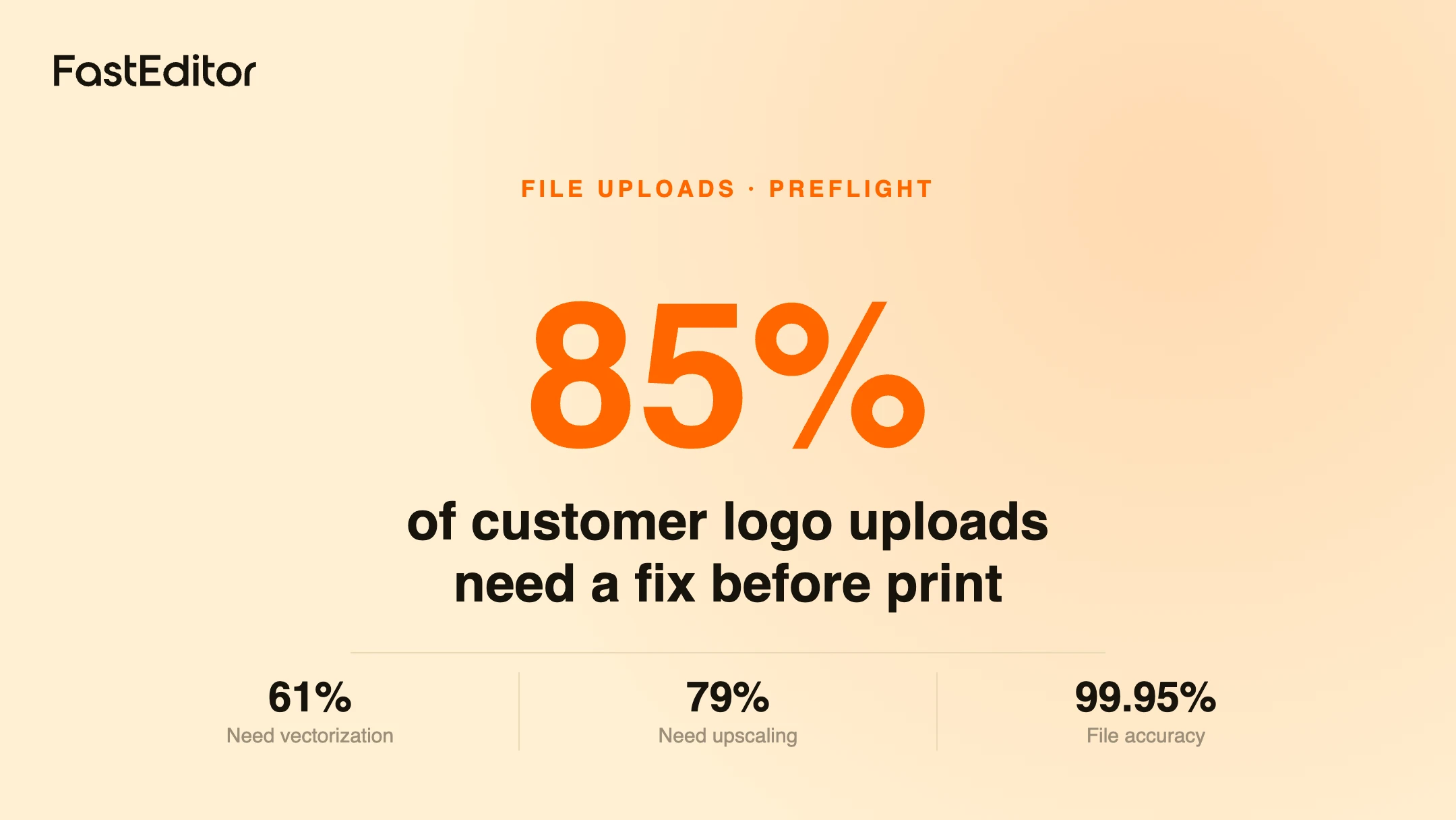
Before the format matters, one property does: is the file vector or raster? A vector file describes artwork as mathematical paths, so it scales to any size without losing quality, which is exactly what print and decoration need. A raster file is a grid of pixels at a fixed resolution, so enlarging it past its native size makes it soft or blocky. Most logos started life as vector art, but by the time a customer uploads one it has usually been flattened into a screenshot, a web PNG, or a photo. In our benchmark of 13,773 real uploads, 61% needed vectorization and 79% needed upscaling before they were usable. That is the gap every decorated-product business has to close, and the reason the same logo can be perfect or unusable depending only on the file it arrives in. We go deeper on this in vector versus raster for printing and embroidery.
What each file type means for print
Here is how the formats customers actually send behave once they reach production. Print-ready in the middle column means usable as-is for most decoration methods, assuming the artwork inside is sound.
| File type | What it is | Print-ready? | What automation does with it |
|---|
| AI | Native Adobe Illustrator vector format | Usually, if fonts are outlined and images embedded | Opens it, checks for outlined fonts and embedded art, validates against the supplier spec |
| EPS | Legacy vector interchange format | Usually | Interprets paths, flags any embedded raster, preflights line thickness and colours |
| SVG | XML-based web vector format | Often | Reads paths directly, checks strokes and fills, converts to the production format |
| PDF | Container that can hold vector, raster, or both | Depends on contents | Detects whether the artwork is vector or a placed image, and treats it accordingly |
| PNG | Lossless raster with transparency | No, it is pixels | Vectorizes the shape, keeps transparency, upscales where needed |
| JPEG | Lossy, compressed raster, no transparency | No | Vectorizes, removes the background and compression artefacts, upscales |
| TIFF | High-quality raster, often large | No, but high source quality | Vectorizes cleanly thanks to the detail, colour-converts |
| GIF | Low-colour raster, often small | No | Vectorizes, rebuilds flat colours, upscales |
| Phone photo (HEIC / JPEG) | A photo of a logo or an existing print | No | Isolates the logo, corrects perspective and lighting, then vectorizes |
What automation actually does with an upload
Accepting a file is the easy part. Turning it into something a printer or embroidery machine can run is the work. When a file arrives, artwork automation runs the same sequence regardless of format. It detects whether the file is vector or raster. If it is raster, it vectorizes the artwork and upscales it to the required resolution. It separates the logo from its background, converts colour from RGB to CMYK or Pantone as the method demands, and runs preflight and line-thickness checks against the chosen supplier and decoration technique. The output is a production-ready file in the exact format that supplier expects. Across our benchmark this ran at 99.95% file accuracy, which is the number that lets you take the human out of routine prepress.
The worst case: a photo of an existing print
The hardest input is not a bad file format, it is a photo. A customer photographs a printed brochure or an embroidered cap, and that image carries everything the camera saw: the texture of the fabric, a shadow across one corner, a slight rotation, and colours shifted by the room light. There is no vector data to recover, only pixels of a physical object. Good automation isolates the logo from the scene, corrects the perspective and lighting, rebuilds the flat colours the artwork was meant to have, and only then vectorizes. It will not invent detail the photo never captured, so a blurry snapshot of a tiny logo still has limits, but a surprising amount is recoverable. When it is not, the right move is to tell the customer immediately rather than at proofing. See turning low-quality uploads into print-ready files for how that plays out in practice.
Why 'we accept AI files' is not a yes or no
Resellers often ask a supplier a simple question, can you take an Illustrator file, and get a simple yes, then hit problems anyway. The reason is that a vector format is a container, and what it contains is what matters. An AI or EPS file can embed a raster image, so it looks like vector art but prints like a JPEG. Its fonts may not be outlined, so the text reflows or disappears on a machine that lacks the font. It can reference linked images that were never packaged with the file, so parts go missing. A PDF has the same trap: exported one way it is clean vector, exported another it is a flattened picture. This is why format checking alone is not enough, and why automation inspects the contents of every upload rather than trusting its extension.
Frequently asked questions
A vector file with outlined fonts and embedded artwork, so AI, EPS, SVG, or a vector PDF. If the customer only has a raster file, a high-resolution PNG or TIFF vectorizes far better than a small JPEG.
Can you print from a JPEG or PNG?
Not directly at production quality, because both are pixels. Automated vectorization rebuilds them into scalable artwork first, which is why the upload format matters less than whether the pipeline can vectorize reliably.
What resolution does a raster logo need?
For raster output, 300 DPI at final print size is the usual standard. For decoration the safer path is to vectorize, because a vector file is resolution-independent and prints crisply at any size.
Why did an Illustrator file still cause problems?
Almost always because its fonts were not outlined, it embedded a raster image, or it linked to files that were not included. The format was fine; the contents were not. Content-level preflight is what catches this.
Key takeaways
- Customers will upload anything, from clean AI files to phone photos; the format they send matters less than what the pipeline can do with it.
- The real dividing line is vector versus raster. Vector files are usually print-ready; raster files need vectorization and often upscaling first.
- A vector format is only as good as its contents: unoutlined fonts, embedded rasters and missing links break AI, EPS and PDF files that look fine.
- Automation detects the type, vectorizes and upscales raster art, converts colour, and validates against the supplier spec, reaching 99.95% file accuracy in our benchmark.
- A photo of an existing print is the hardest input; a good pipeline recovers a lot, but cannot invent detail the camera never captured.