A hairline vanishes on a screen print. Text is too fine to engrave. A stroke is too thin for the embroidery machine to hold. FastEditor checks every upload against the real limits of the technique and the supplier. It runs on every order, before the file moves.
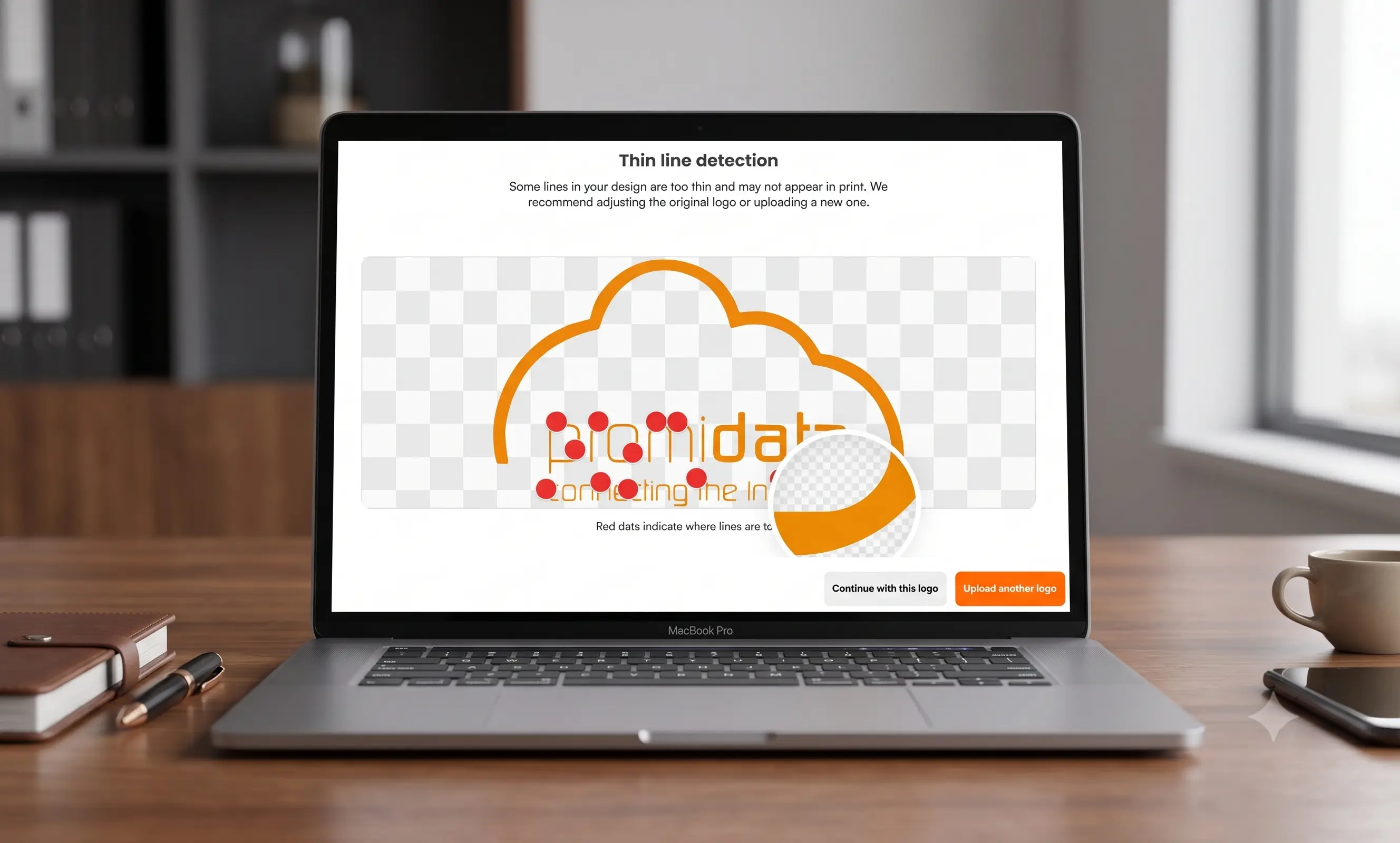
Line-width problems stay invisible until production tries to reproduce them. By then the order is late, the material is spent, and the customer is already unhappy. Manual preflight catches some of it, some of the time.
A stroke too thin to hold shows up mid-run, on paid stock, at the engraver, screen, or embroidery head.
A person zooms in and guesses whether a hairline will survive the technique. It scales badly and it is never consistent.
Every supplier and every technique has its own minimum line width. None of it is enforced automatically at intake.
The same check runs in the customer flow, in your team's tool, and in the automated file pipeline, against the exact spec of the chosen product and technique.
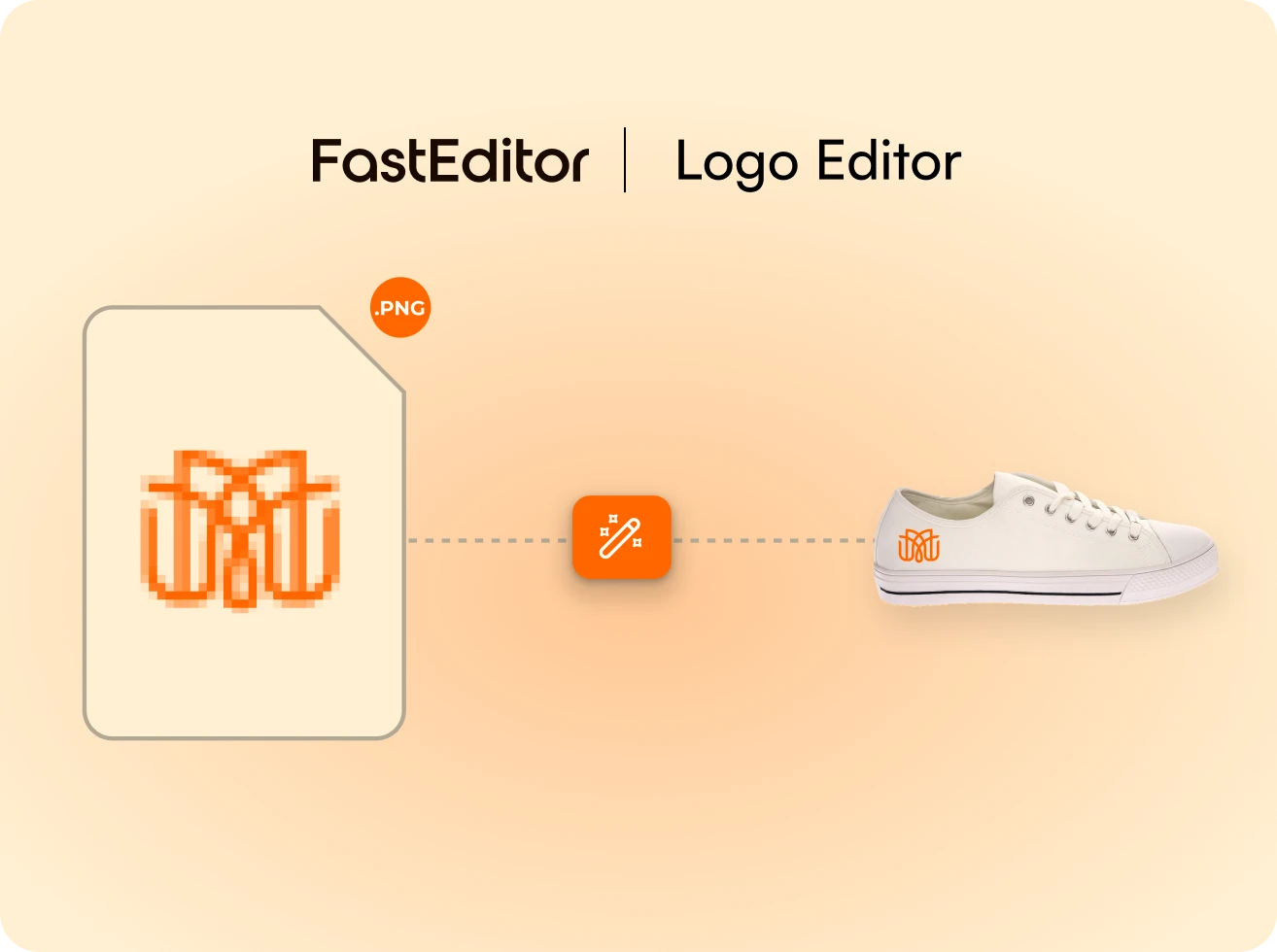
Thin lines and unreproducible detail are surfaced during personalization, so the customer resolves it before checkout, not after.
See the customer flow →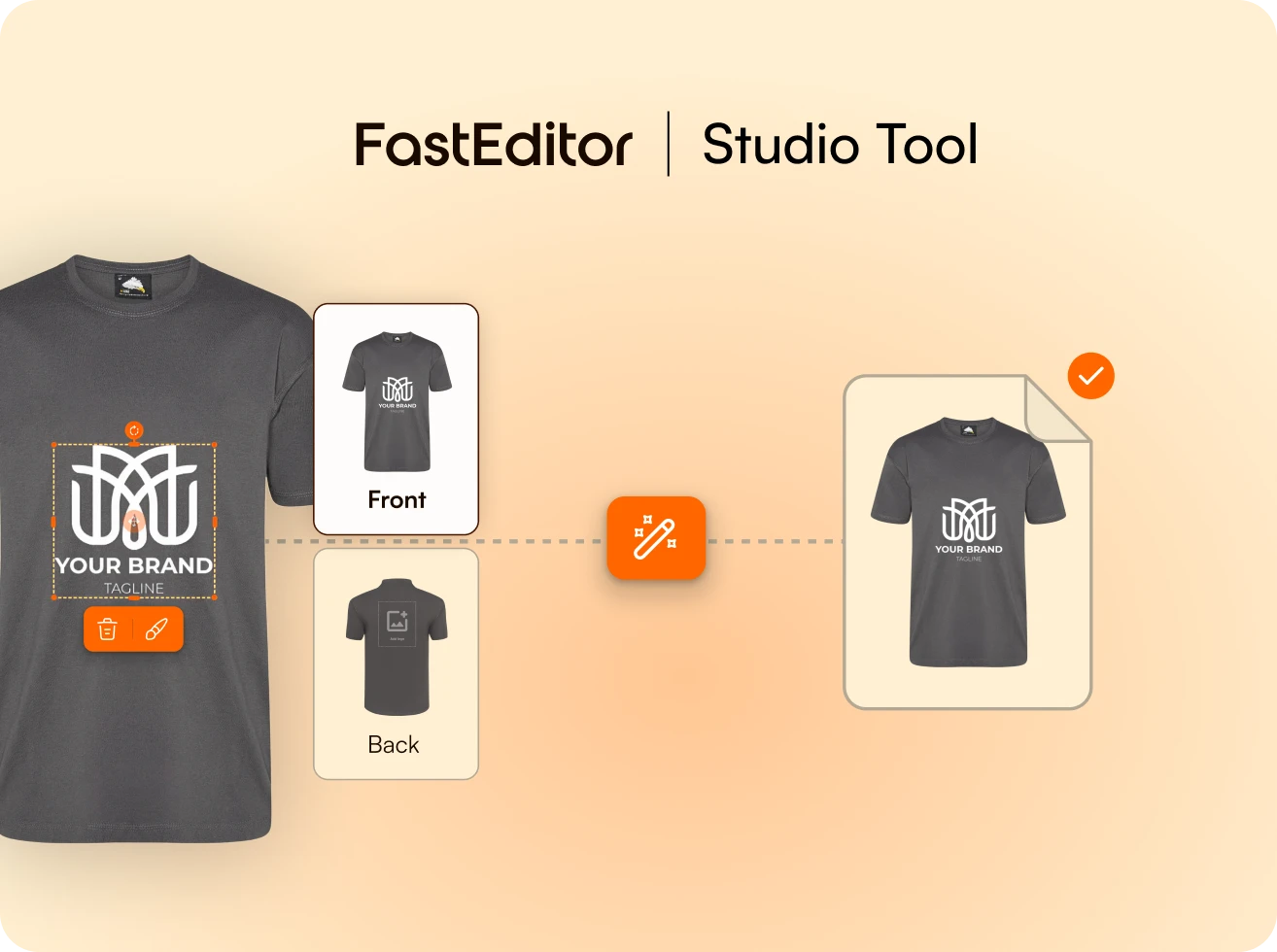
Account managers see whether the artwork will hold on the chosen product and technique before they promise a result.
Explore Studio Tool →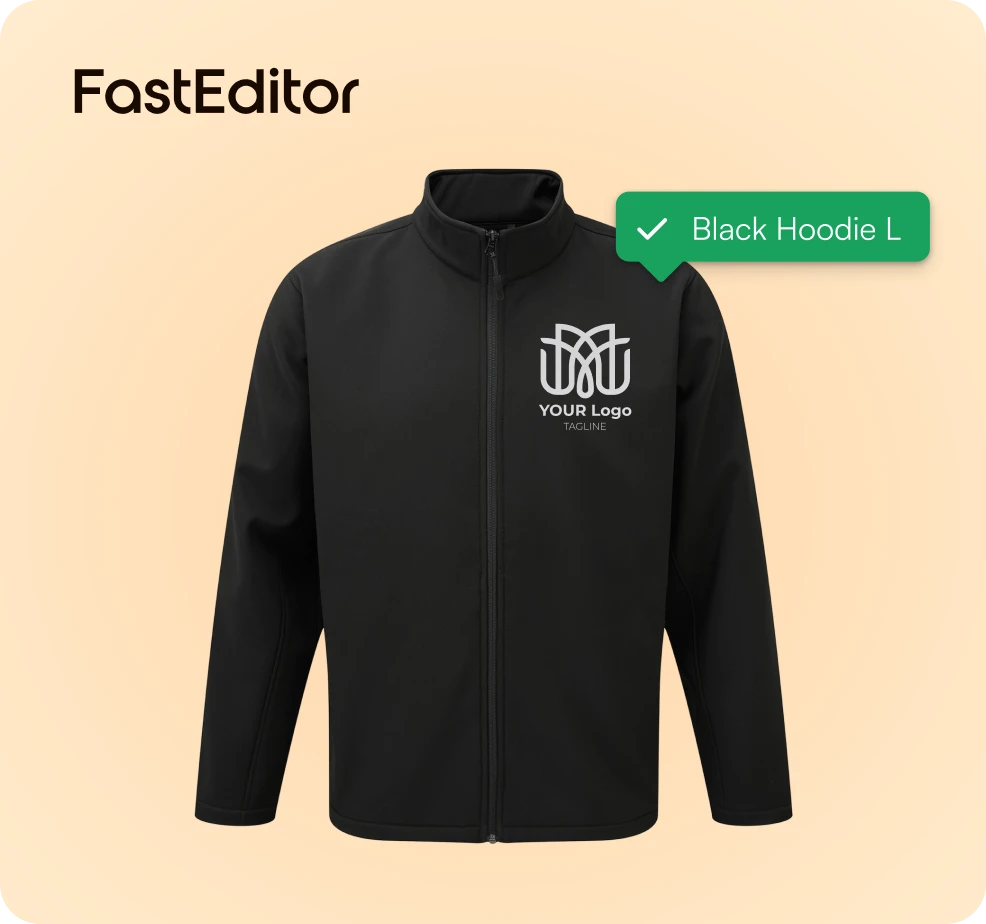
Every generated file is validated against the supplier's minimum line width and technique limits before it is released to production.
See file generation →Every file is checked against the real specs of the product and the print method, before it reaches production.
Lines and details too thin to reproduce for the chosen method.
Colors outside the method's range.
Dimensions and placement outside the product's print area.
Transparency and resolution problems.
Catching a problem before production removes the reprint, the complaint and the delay.
Measured across live integrations in promo, workwear, and engraving.
Files reach production already validated against the technique that will reproduce them.
Unreproducible detail is resolved before material or machine time is spent on it.
Preflight stops being a person zooming in and guessing on every order.
What passes intake is what the machine can actually hold, no failures discovered mid-run.
Each supplier's minimum line width and technique rules are applied automatically at the source.
Woodcrave routes every engraving order through automated line-thickness checks, unreproducible detail is caught at intake instead of on the laser bed.

Still unsure whether it fits your catalog? We will walk it through on your own products.
Ask us anythingLines, strokes, and details that fall below the minimum reproducible width for the chosen technique and supplier, the things that vanish or fail when printed, engraved, or embroidered.
Yes. Screen printing, pad printing, laser engraving, embroidery and the rest each have their own minimum line width, and the check applies the right limit automatically.
Yes. Minimum line width and technique rules are configured per supplier in the Product Hub and enforced at intake, so every reseller sends compliant files.
During personalization in the Logo Editor, so they can adjust the artwork before checkout instead of hearing about it after they have paid.
You choose. It can warn and let the customer proceed, prompt for a better file, or hold the file from production, configurable per workspace and technique.
Yes. Uploads are vectorized and cleaned first, then the reproducible-detail check runs on the production geometry, so the assessment reflects the file that will actually be printed.
