TL;DR
You cannot show a Customise button on every product, because only some of your catalogue is onboarded in the artwork editor. Pull an enabled-product feed keyed by supplier and base SKU, match at model level, map supplier names, handle unmatched products gracefully, and refresh on a schedule so the mapping never drifts.
The question every integrator hits: you have a catalogue of thousands of products, an artwork editor ready to embed, and no way to tell which products the editor actually supports. So where do you show the Customise button? Getting that mapping right is the difference between a clean launch and a wall of dead buttons.
Embedding an artwork editor is the part everyone plans for. The part that quietly derails launches is the mapping question: of the thousands of products in your own catalogue, which ones can a customer actually personalise, and how does your storefront know? FastEditor covers roughly the same supplier ranges that promotional distributors already sell, but nothing in your product data flags those items by default. This guide walks through how to match your catalogue to the editor's enabled products so the Customise button appears only where it works.
The matching problem nobody warns you about
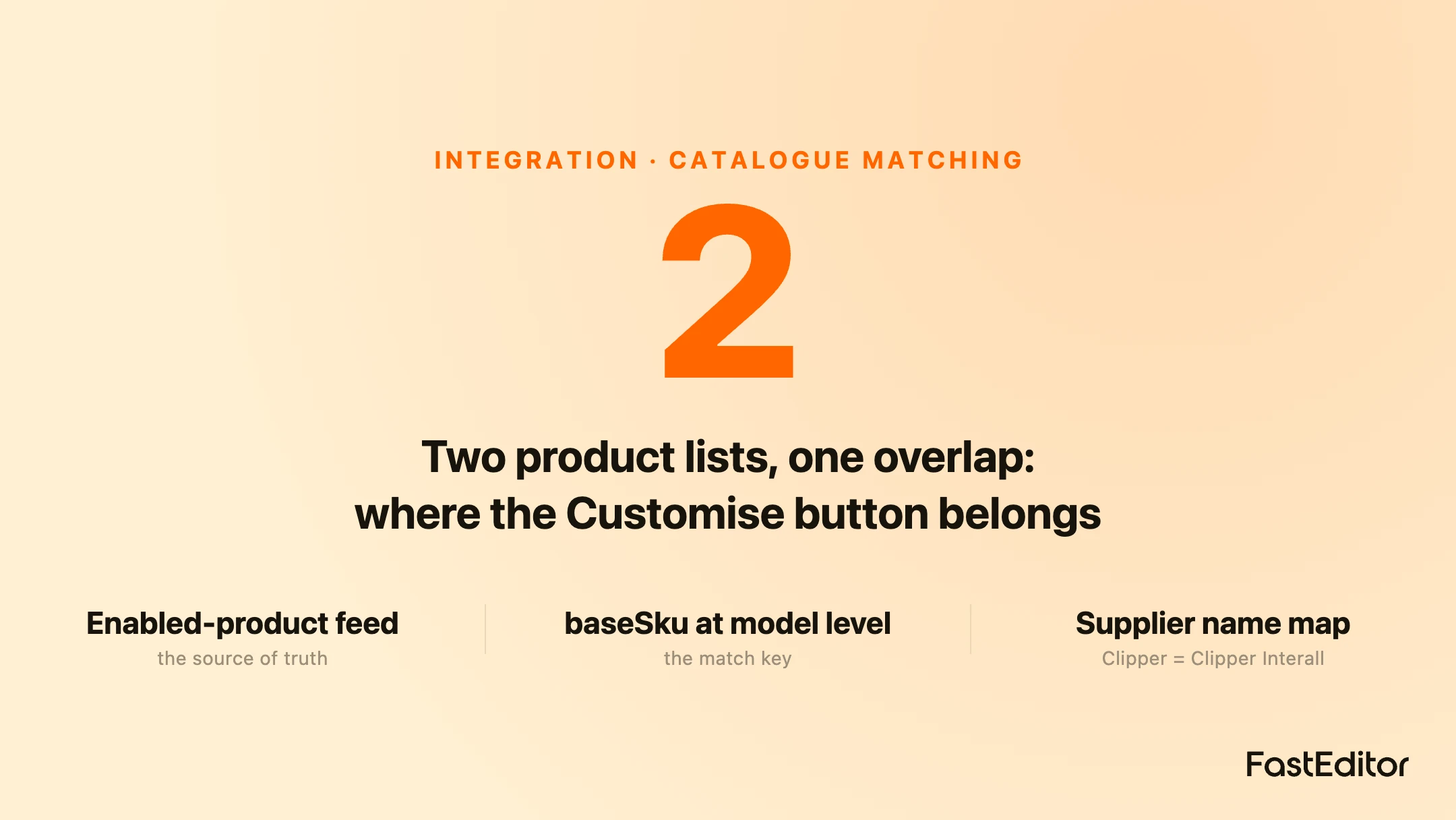
Your catalogue and the editor's enabled products are two separate lists maintained by two different parties. You know your own SKUs, your own supplier names, and your own category structure. The editor knows which products have been onboarded with print areas, decoration methods, and colour limits. The overlap between those two lists is real, but it is not written down anywhere in your data. If you show a Customise button on every product and hope for the best, customers click through to products that were never set up, and the experience breaks on the items you most wanted to sell. The job is to compute the overlap before you render a single button.
Start from the enabled-product feed
The cleanest way to know what is supported is to pull the list, not guess it. Ask your artwork provider for a feed or endpoint that returns every enabled product, keyed by supplier and base SKU, and ideally a signal for when a product is added or removed. With FastEditor that overlap is driven by the Product Hub, where supplier ranges are onboarded with their print data, and it is reachable through the API. Pull that feed on a schedule, store the enabled set on your side, and join it against your catalogue. Now the Customise button is a lookup, not a bet. This is the same principle behind a clean product data contract: agree on the fields that identify a product before you exchange anything else.
Match at the right SKU level
The most common matching bug is joining on the wrong level. A base SKU usually identifies a product at model level, for example a supplier model code, while your own data may key everything at colour or size variant level. If you match a variant code against a model code, nothing lines up and every product looks unsupported. Decide early which of your codes corresponds to the provider's base SKU, normalise both sides to that level, and match there. A single configured product can still carry every variant a customer picks later, which is exactly what virtual SKUs are for: one identifier that encodes a full configuration. Matching happens at model level; configuration happens inside the editor.
Map supplier names before you trust them
Supplier names almost never match across two systems. One side calls a supplier Clipper, the other calls it Clipper Interall. One uses a short brand name, the other the full legal entity. If the supplier field has to match exactly and it does not, the join silently drops real products. Build a mapping table between your supplier names and the provider's supplier names or IDs, treat that table as part of your integration, and review it whenever either side adds a supplier. Ask your provider for the full list of connected suppliers as they expect the names to appear, then map once and reuse it everywhere.
Handle unmatched products gracefully
No matter how good your mapping is, customers and staff will land on products that are not enabled. Decide what happens then before it happens. The safest pattern is to check availability before you render the button, so an unsupported product simply does not show a Customise option rather than showing one that fails. If you cannot check in advance, make sure a call for a disabled product returns a clear, documented error you can catch, not a blank editor. Either way the customer should never reach a broken screen. A product that is not enabled yet is also a useful signal: it tells you exactly what to ask your provider to onboard next.
Keep the mapping in sync
The enabled set is not static. Suppliers get added, ranges get onboarded, and the occasional product gets pulled. A mapping built once and never refreshed slowly drifts out of date, and the symptoms are the worst kind: buttons that used to work stop working, and new products that should be customisable never show the option. Pull the enabled-product feed on a schedule, diff it against what you stored last time, and update your Customise flags automatically. Treat the feed as the source of truth and your flags as a cache. For the full picture of how a configured product becomes a finished order, see the cart-to-print-file lifecycle, and for the broader integration models the web-to-print API integration guide.
Frequently asked questions
How do I know which of my products are customisable?
Pull an enabled-product feed from your artwork provider rather than guessing. It returns every product that has been onboarded, keyed by supplier and base SKU, and you join it against your own catalogue. The products present in both lists are the ones that get a Customise button.
What SKU should I match on?
Match on the level the base SKU represents, which is usually the supplier model code, not a colour or size variant. Normalise both your data and the provider feed to that level before joining, or the match will fail even for products that are genuinely supported.
Why do not the supplier names line up?
Each system stores supplier names differently, for example Clipper versus Clipper Interall. Build a mapping table between your names and the provider's names or IDs and maintain it as part of the integration, so the supplier field matches reliably.
What happens if I open the editor for a product that is not enabled?
Check availability before showing the Customise button so unsupported products never show the option. If a call is made anyway, it should return a clear, documented error you can catch, rather than opening a blank or broken editor.
How often should I refresh the mapping?
Refresh on a schedule, because the enabled set changes as suppliers and ranges are onboarded. Pull the feed regularly, diff it against your stored set, and update your Customise flags automatically so the mapping never drifts out of date.
More articles in Developers & API.
Key takeaways
- Your catalogue and the editor's enabled products are two separate lists; the Customise button belongs only on their overlap.
- Pull an enabled-product feed keyed by supplier and base SKU instead of guessing which products are supported.
- Match at the level the base SKU represents, usually model level, not colour or size variant level.
- Supplier names rarely match across systems, so build and maintain a mapping table as part of the integration.
- Check availability before rendering the button, and make unmatched calls return a clear error rather than a broken screen.
- Refresh the enabled set on a schedule and treat it as the source of truth so the mapping never drifts.