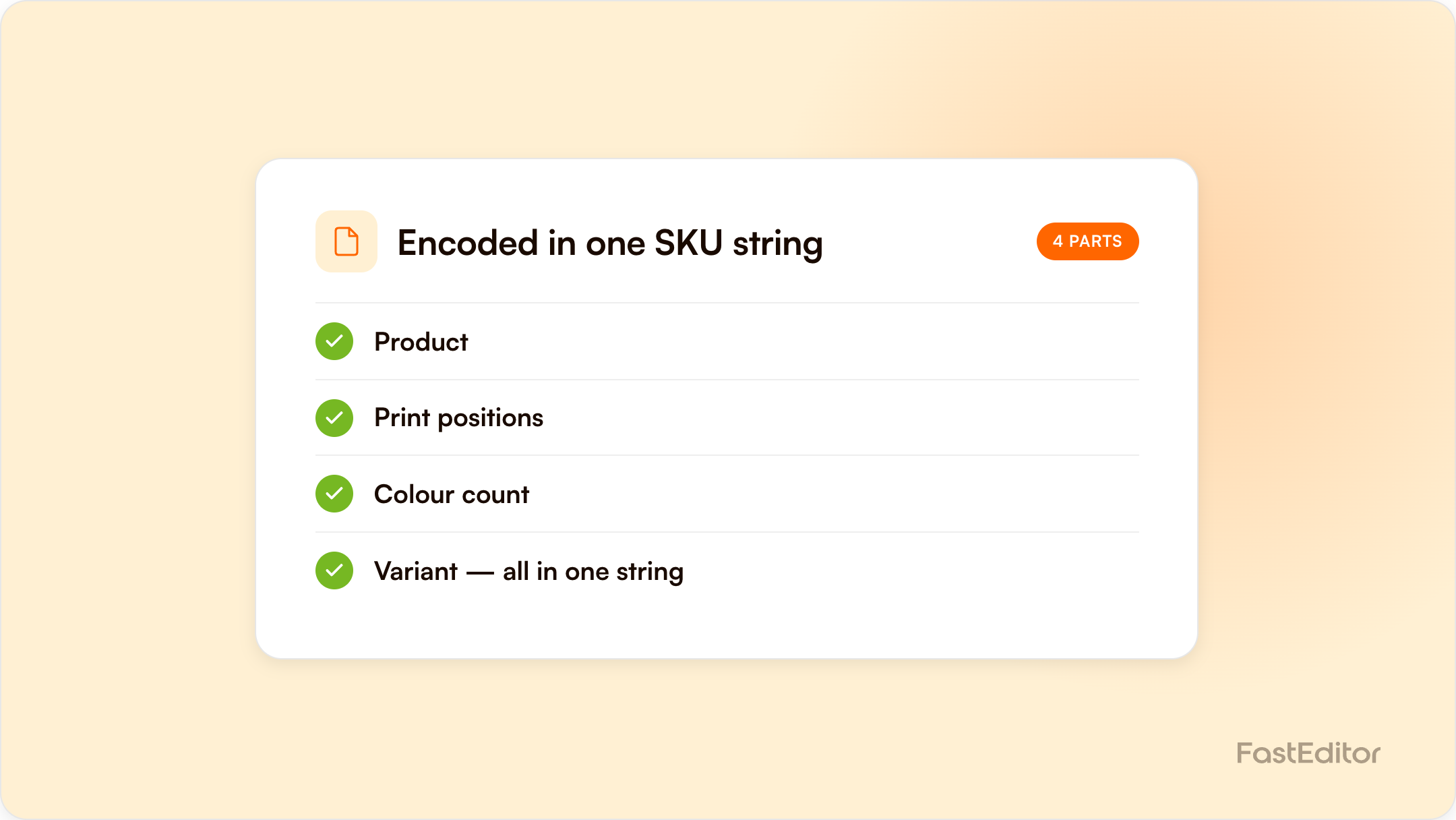
A FastEditor virtual SKU encodes a product, its print positions, and its colour count in a single string (e.g. TSHIRT-100#DTG|$pp=Front__Back&$pc=fc). Pass it to the Create Smartlink endpoint and the editor opens pre-configured, so platforms that require one SKU per variant, like WooCommerce, can still offer full product customisation.
If you've ever wired a product customizer into an off-the-shelf e-commerce platform, you've hit this wall: the platform wants exactly one distinct SKU per variant, and your customizable product has combinations (front print, back print, four colours, two colours, full colour) that multiply faster than you can pre-create SKUs.
WooCommerce is the classic example. Every variant needs its own SKU. But “a t-shirt printed front-and-back in four colours” and “the same t-shirt printed front-only in full colour” are two different print configurations of the same physical product. Pre-generating a SKU for every permutation is unmanageable.
FastEditor's virtual SKU solves this. It encodes the product and its print configuration into one string, so a single value carries everything the editor needs to open with the right print positions and colour constraints already applied.
A virtual SKU is a base SKU followed by an encoded configuration:
TSHIRT-100#DTG|$pp=Front__Back&$pc=fcRead it left to right:
TSHIRT-100#DTG: the FastEditor SKU, the supplier's base SKU joined to a print-method identifier with #.|$pp=Front__Back: the print positions to enable. Multiple positions are joined with a double underscore (__).&$pc=fc: the print colour count. fc means full colour; a number like 4 locks the editor to four print colours.Pass this to the Create Smartlink endpoint and the editor opens pre-configured to exactly those positions and that colour count. No separate productAttributes object required.
The virtualSku field is one of the optional parameters on the Create Smartlink request. Pair it with the supplier name:
{
  "supplier": "PF Concept",
  "virtualSku": "10051500#1|$pp=front&$pc=4"
}
Two rules worth committing to memory:
virtualSku overrides productAttributes. If you send both, productAttributes is ignored.virtualSku is ignored when projectId is set. Reopening an existing project always wins.So the three product-entry scenarios are cleanly separated: a new product with full control (supplier + productAttributes), a new product with a one-string config (supplier + virtualSku), or reopening an existing project (projectId).
You don't construct them by guessing. The Get All Product Configurations endpoint hands you valid ones. Request a supplier's configurations with virtual-skus=true and each offering is expanded with a virtualSkus array: every valid combination of print-position subset and colour count.
GET /api/offering/smartlink?supplier=PF%20Concept&virtual-skus=trueTwo documented constraints matter here:
virtualSkus array. Build those with productAttributes instead.max-colors-only=true. Combine it with virtual-skus=true to filter each array down to only the entries at the maximum colour count for that offering's print method. It's ignored unless virtual-skus=true is also set.Results are paginated (default 20, capped at 1000). Page through with limit / offset and the x-pagination-next / x-pagination-previous headers; x-total-records gives the full count.
virtual-skus=true. For each offering you sell, take the virtual SKU(s) you care about (optionally narrowed with max-colors-only=true).virtualSku and your supplier name. The editor opens with the right positions and colour count locked.curl -X POST "https://{api_domain}/api/smartlink" \
-H "X-Api-Key: YOUR_API_KEY" \
-H "Content-Type: application/json" \
-d '{
"supplier": "PF Concept",
"virtualSku": "10051500#1|$pp=front&$pc=4",
"country": "US",
"currency": "USD",
"language": "en"
}'Replace {api_domain} with your assigned API domain. The staging default is api.editor.staging.fasteditor.com; your production domain is provided with your API credentials.
The response is a single URL you redirect the shopper to.
The one-SKU-per-variant limitation isn't a dealbreaker for product customisation. It's a constraint to encode against. Virtual SKUs let one string stand in for a product plus its entire print configuration, the catalogue endpoint generates the valid ones for you, and the 8-area cap keeps the combinatorics sane.
Virtual SKUs only pay off when every configuration resolves to a real, printable file. That is what the production-file engine does, and you can size the effect on your own order mix with the ROI calculator.
| Segment | Example | What it sets |
|---|---|---|
| Base SKU | TSHIRT-100 | The supplier product |
# print method | #DTG | The decoration method identifier |
|$pp= | |$pp=Front__Back | Print positions to enable, joined with __ |
&$pc= | &$pc=fc | Colour count: fc for full colour, or a number to lock it |
Precedence, worth memorising: virtualSku overrides productAttributes, and projectId overrides virtualSku. Virtual SKUs are only returned for configurations with 8 or fewer print areas; above that, build with productAttributes.
More articles in Developers & API.
A virtual SKU is a single string that encodes a product's base SKU, print method, enabled print positions, and print colour count, for example TSHIRT-100#DTG|$pp=Front__Back&$pc=fc. Passing it to the Create Smartlink endpoint opens the editor pre-configured with those positions and that colour count.
Yes. Because the entire print configuration is encoded in one string, you can store a virtual SKU as a single variant SKU on platforms that require one distinct SKU per variant, such as WooCommerce, and still offer full product customisation.
Virtual SKUs are only returned for product configurations with 8 or fewer print areas. Configurations with more than 8 printable areas omit the virtualSkus array; use productAttributes on Create Smartlink for those products instead.
